
GEPCO Online Bill Checker – View Duplicate Bill for Gujranwala
If you need to check your GEPCO electricity bill, you can use your 14-digit Reference Number to view your latest bill online. Depending on the bill-checking service you use, other customer details may also be supported. Enter your Reference Number in the tool below, and your latest bill will appear on screen with the amount, due date, and consumption details.
The Reference Number is printed on your paper bill, usually near the top. If you cannot find your bill copy, keep reading below for other ways to locate it.
GEPCO Duplicate Bill Online Check
A duplicate GEPCO bill is simply a fresh copy of your original bill, generated online instead of on paper. It contains the same information as the bill GEPCO delivers to your home: consumer details, billing month, units consumed, amount due, and due date.
People usually need a duplicate bill when the paper copy is lost, delayed, or damaged before payment. It is also useful when you need a bill copy for office records, address proof, or bank purposes. Once you check your bill using your Reference Number, the same duplicate copy can be used to pay at a bank, ATM, or mobile banking app, since it carries the same billing details as the original.
GEPCO Bill Online Check in Gujranwala
GEPCO stands for Gujranwala Electric Power Company, with its head office based in Gujranwala. GEPCO serves consumers across six districts of Punjab, including Gujranwala, Sialkot, Gujrat, Hafizabad, Narowal, and Mandi Bahauddin.
If your bill shows GEPCO as the distribution company, you can use the GEPCO bill-checking service above to access your bill online, regardless of which of these districts your connection falls in.
How to Do GEPCO Online Bill Check
Checking your bill online takes three basic steps:
- Locate your 14-digit Reference Number or your Customer ID on your last paper bill.
- Enter the number into the bill-checking field above.
- Click the check button to view your current bill on screen.
Once the bill loads, you can view every important detail, print it, or save it as a PDF for your records.
GEPCO Online Bill Check by Reference Number
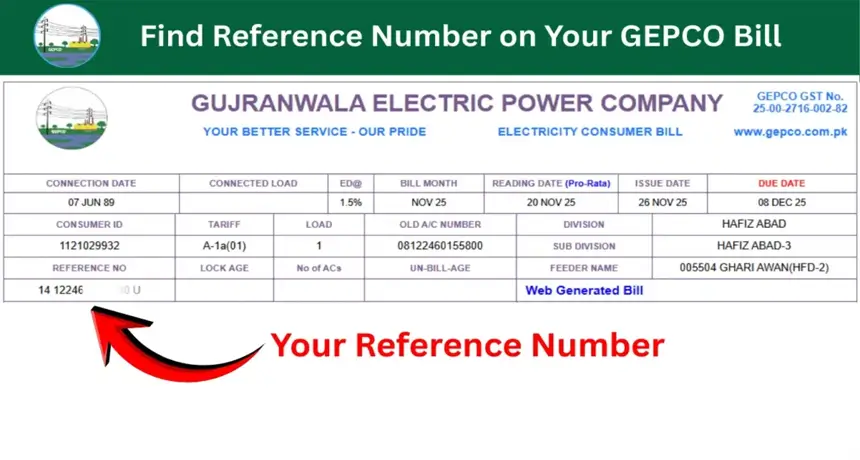
The Reference Number is the official way to check your GEPCO bill. It is a 14-digit number printed near the top of your paper bill, often close to or just below the Customer ID.
The Reference Number is used to identify your electricity connection for bill lookup. GEPCO advises consumers to use the 14-digit Reference Number shown on their printed electricity bill, especially if their number has been revised. If your bill was recently reissued or corrected, make sure you are using the number from your most recent copy rather than an older one.
To use it, type all 14 digits into the input field exactly as printed, without adding spaces or dashes. Double-check the digits before submitting, since a single wrong number will not return your bill.
After you click the check button, the system searches for a bill matching that Reference Number. If a current bill exists for that connection, it displays on screen with the full billing details, including amount due, due date, and consumption figures.
Online Bill Check GEPCO by Consumer ID
The Consumer ID (also called Customer ID) is a separate number that identifies your electricity connection itself, rather than a specific bill. The Reference Number remains the primary and official way to look up your bill.
Not every GEPCO bill-checking service accepts the Consumer ID as a lookup method. Where it is supported, it works the same way as the Reference Number: enter the number in the field provided and click check. If Consumer ID lookup does not return a result, use the Reference Number instead.
The key difference to remember is this: the Reference Number is tied to your bill lookup, while the Consumer ID identifies your connection more broadly.
What Information Is Shown on a GEPCO Bill?
A GEPCO bill typically includes the following details:
- Consumer name
- Reference Number
- Consumer ID
- Meter number
- Billing month
- Bill issue date
- Due date
- Previous and current meter readings
- Units consumed
- Current electricity charges
- Taxes and other government charges
- Arrears, if any amount is unpaid from previous months
- Total payable amount
Not every bill will show arrears, since this field only appears when a previous balance is outstanding.
How to Download or Print GEPCO Duplicate Bill
After your bill appears on screen, look for a download or print option on the page. Where a direct download button is available, you can save the bill as a PDF file to your phone or computer.
If no dedicated download button is available on a particular bill-checking page, you can still use your browser’s built-in print option and select “Save as PDF” instead of sending it to a physical printer. This gives you a digital copy you can keep or share by email.
How to Pay GEPCO Bill Online?
Once you have checked your bill, you may be able to pay it through your bank’s mobile or internet banking service, depending on the payment options supported by your bank.
The exact payment channels available to you depend on which bank or mobile wallet you use, since not all providers support every utility company. Check your banking app’s bill payment menu to confirm whether GEPCO is listed.
Before confirming any payment, take a moment to verify:
- The Reference Number matches your bill
- The consumer name is correct
- The amount matches what is shown on your duplicate bill
- The due date has not already passed
Can I Pay My GEPCO Bill Offline?
Yes. All commercial bank branches are authorized to collect GEPCO electricity bill payments. Depending on the payment terms on your bill, other options such as post offices and NADRA e-Sahulat kiosks may also accept payment. Carry your paper bill or a printed duplicate copy when paying in person, since staff usually need the Reference Number to process payment.
If your paper bill did not arrive, print a duplicate copy first using the online bill-checking tool, then take it to your usual bank branch or collection point.
Areas Covered by GEPCO
GEPCO distributes electricity across six districts in central Punjab.
| District |
|---|
| Gujranwala |
| Sialkot |
| Gujrat |
| Hafizabad |
| Narowal |
| Mandi Bahauddin |
If you are unsure whether your connection falls under GEPCO, check the distribution company name printed on your bill, since a nearby address does not always guarantee the same DISCO.
Common Issues While Checking GEPCO Online Bill
- Incorrect Reference Number Recheck each digit against your paper bill. A single mistyped digit will prevent the bill from loading.
- Incorrect Consumer ID Confirm you are reading the Consumer ID and not the Reference Number, since the two numbers are printed close together and are easy to mix up.
- Bill not found Try the alternate lookup method. If your Reference Number does not work, attempt the Consumer ID, or the reverse.
- Latest bill not showing New bills can take a short time to appear online after they are generated. If the current month’s bill is not visible yet, check again after a day or two.
- Website or page not loading Refresh the page or try again after some time, since heavy traffic near the due date can slow down bill-checking services.
- Old or revised Reference Number If your Reference Number recently changed due to a meter update or billing correction, use the number from your most recent paper bill rather than an older one.
- Connection belongs to another DISCO If your bill will not load under GEPCO, confirm the distribution company printed on your paper bill. Your connection may actually belong to a neighboring company such as LESCO or FESCO.
How to Check GEPCO Duplicate Bill
- Open the bill-checking tool.
- Enter your Reference Number or Consumer ID.
- Click the check button.
- View, download, or print the duplicate bill that appears.
GEPCO Online Bill Check for Previous Months
Online bill-checking tools are built mainly to display your current, active bill rather than a full archive of past bills. Depending on the specific service you use, you may or may not be able to view previous months through the same lookup.
Because online access to older bills is not guaranteed, it is worth saving a PDF or printed copy of each bill as you check it. This way, you build your own personal record instead of relying on the availability of historical data online.
GEPCO Bill History & Consumption Check
Keeping track of your electricity usage over time helps you notice sudden spikes and manage your budget. Since guaranteed access to old bills online can vary, the most reliable approach is to save your own copies each month.
A simple way to track consumption:
- Download or print each monthly bill as a PDF
- Note the units consumed and total amount from each bill
- Compare month to month to spot unusual increases
- Keep a folder, physical or digital, organized by billing month
If older bills are not available through the online tool, check whether your bank’s payment history (if you paid online) shows a record of the transaction and amount, which can serve as a backup reference.
GEPCO Bill Payment After Checking Online
After you check your bill and confirm the amount, the next step is paying it before the due date to avoid extra charges.
What Happens If You Pay After the Due Date?
If you pay after the due date, a Late Payment Surcharge (LPS) may apply. The applicable amount is shown according to the payment terms on your bill. To avoid this charge, pay on or before the due date, and check your bill early enough to leave time for the payment to process.
How to Check GEPCO Bill Payment Status?
After making a payment, keep the bank or payment-service receipt as proof. Payment records may take some time to update, depending on the payment channel you used.
If your bill still shows as unpaid shortly after payment, wait a day or two before assuming there is a problem, since confirmation timing varies by bank or payment service.
FAQs About GEPCO Online Bill
Can I download or print my GEPCO bill?
Yes. Once your bill appears on screen after checking it online, you can download it as a PDF where that option is available, or use your browser’s print-to-PDF feature to save a digital copy.
Does it cost extra to check my GEPCO bill online?
Checking your bill online through a bill-checking tool does not itself cost anything. However, if you pay through a bank or mobile wallet, that provider may charge its own transaction fee, separate from the bill amount itself.
How can I find my GEPCO bill history online?
Online tools are built mainly for checking your current bill, and guaranteed access to older bills can vary by service. The most reliable way to build a bill history is to save a PDF or printed copy of each month’s bill as you check it.
Where can I find my GEPCO Reference Number?
Your Reference Number is a 14-digit number printed on your paper bill, usually near the top, close to or just below your Consumer ID.
Can I check my GEPCO bill without a Reference Number?
The Reference Number is the official way to check your GEPCO bill. Some bill-checking services also accept the Consumer ID as a secondary lookup method, but support for this can differ between tools, so the Reference Number remains the most reliable option.
Why is my GEPCO bill not showing online?
This usually happens due to a mistyped number, a very recently generated bill that has not updated online yet, or a connection that belongs to a different distribution company. Recheck your Reference Number and Consumer ID carefully, and confirm the DISCO name on your paper bill if the problem continues.
More Utility Bills
- LESCO Online Bill
- MEPCO Online Bill
- FESCO Online Bill
- IESCO Online Bill
- PESCO Online Bill
- HESCO Online Bill
- SEPCO Online Bill
- QESCO Online Bill
- K-Electric Bill